How to Configure "In Person Signer" Send Type
How to Configure "In Person Signer" Send Type
When opening the e-sign pop-up using DocuSign, you have the option to display and allow the user to select a Sign Type of In Person Signer. When this Send Type is selected, the following process will take place:
-
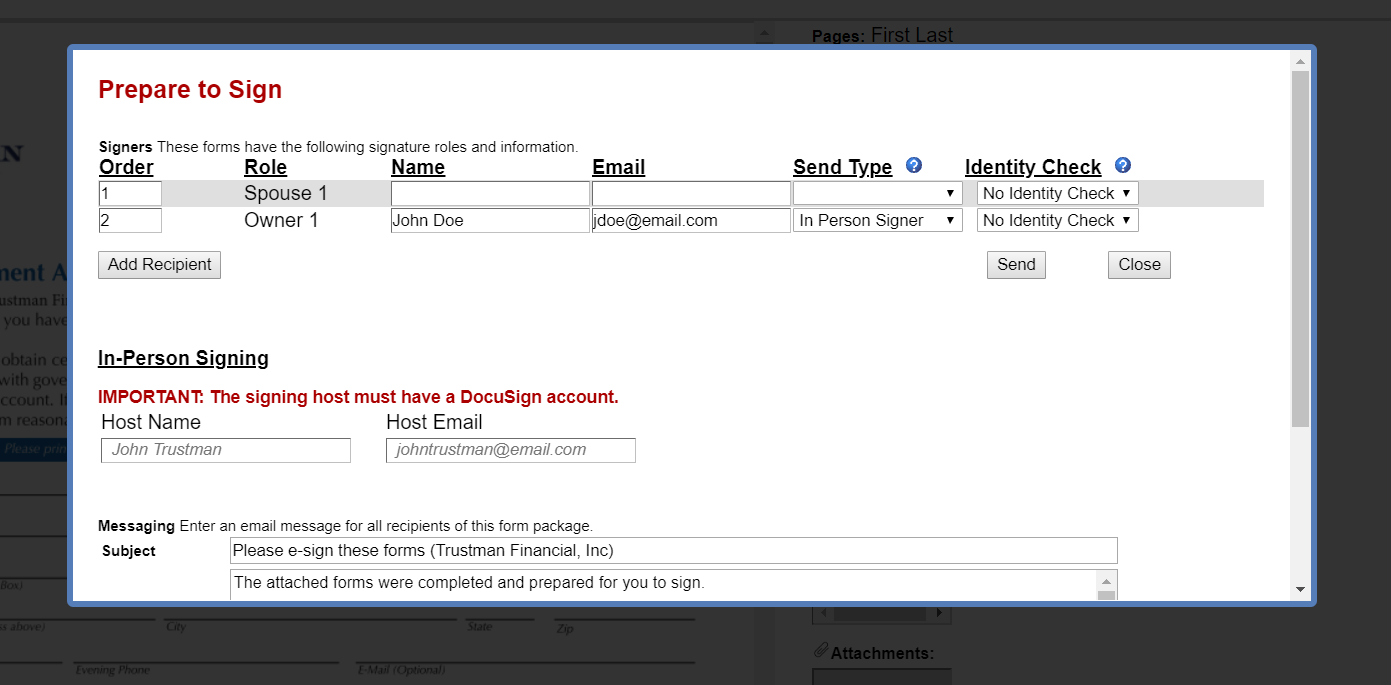
The In Person Signing dialogue is displayed in the e-sign pop-up as seen below:
-
Enter the Host Name and Host Email. The Host Email must be associated with a valid DocuSign account.
-
Alternatively, customers can prefill the Host Name and Email fields via API. REST JSON sample code below:
{
  "HostFormOnQuik": true,
  "QuikFormID": "12",
  "ESignType": {
    "Type":"Docusign",
    "AuthUserID":"",
    "SignCallBackURL":"",
    "SignEnvironmentID":2,
    "InPersonSigningHost": {
         "Name": "John Smith",
         "Email": "jsmith@email.com"
          }
   }
}
-
-
After this information is entered, click Send.
-
The Host will receive an email from DocuSign with a link for the signers to sign the forms.
-
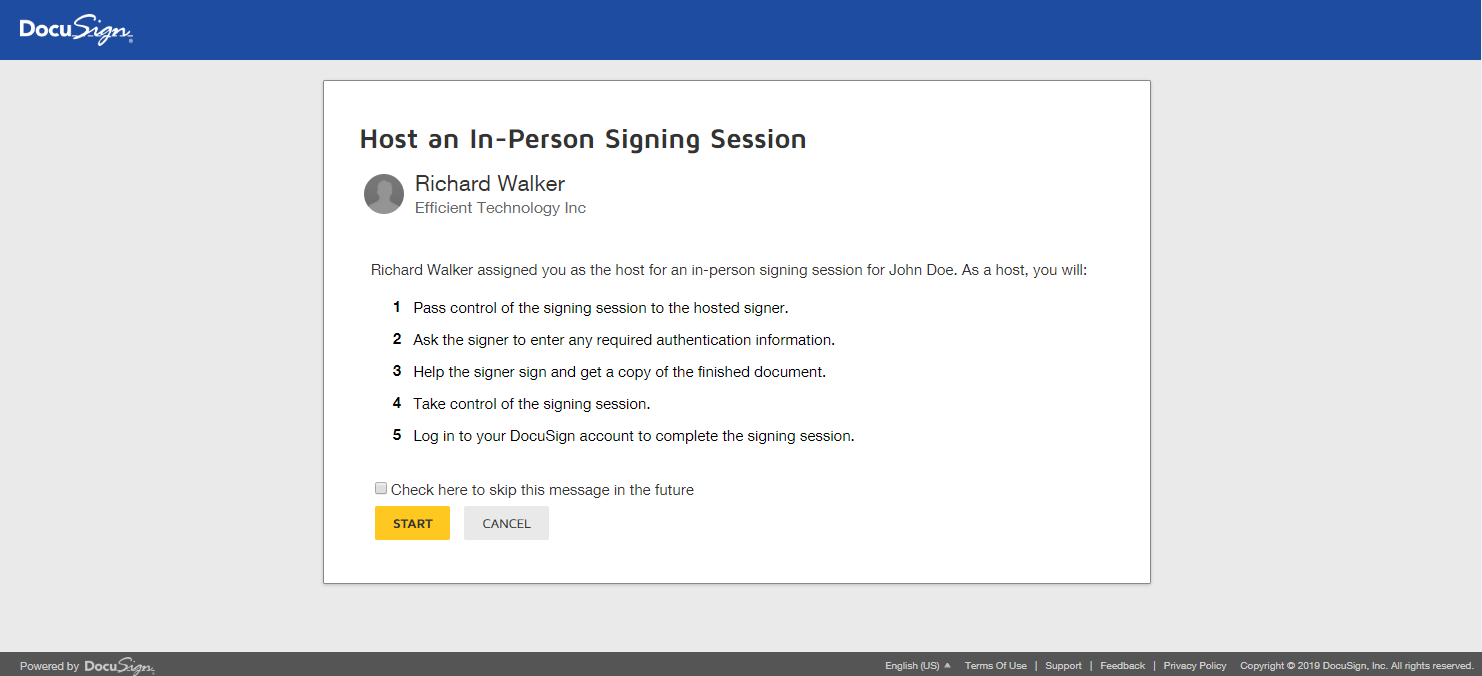
When the host clicks the link, DocuSign will display a message informing the Host of the process:
-
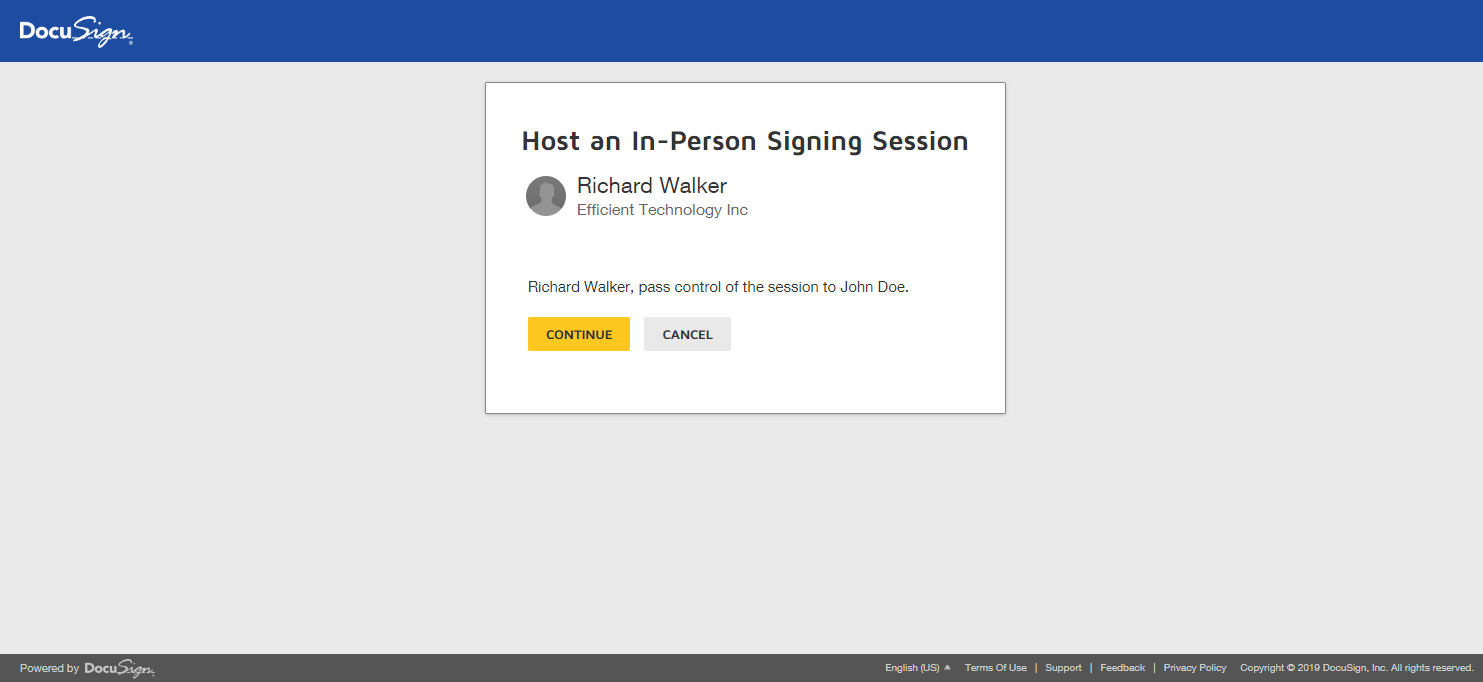
DocuSign will ask the Host to pass control to the Signer:
-
The signer will e-sign the form in DocuSign
-
When finished, the signer has the option to email a copy of the completed document to their email
-
DocuSign will ask the Signer to pass control back to the Host
-
The process is complete, and the next signer (if any) will sign the form until the signing ceremony is finished.