How to Configure the Docusign Sign Order
How to Configure the Docusign Sign Order
When sending a form to recipients for E-Signature with Docusign, you may configure the order in which each recipient receives the form in the "Order" column in the E-Signature pop-up.
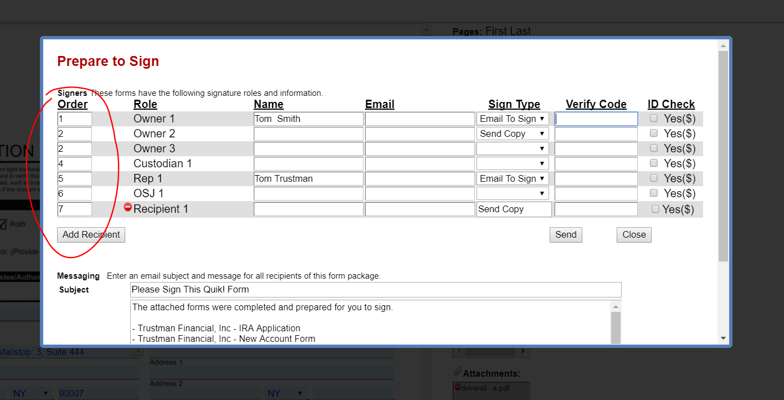
See below for a few notes about the Order column:
-
Quik! allows users to assign the same number to multiple recipients. This means that Docusign will email the form to those recipients at the same time.
-
Quik! allows users to enter whatever numbers they would like in each row- the order is simply based on larger and smaller numbers relative to each other. The larger the number, the later in the "line" that recipient will receive the form.
-
Quik! allows customers to lock down the order for all users by configuring the SignOrderLock property as TRUE. This sets the order as read-only on the screen so users can't make changes.
How DocuSign handles same emails:
- If the same email appears in multiple roles with different order values, separate emails will be sent for each role.
- If the same email appears in multiple roles with the same order value, one email will request signatures for all assigned roles.
-
The Signing Order Index begins at 1, not 0